Excel for your voice agent
Microsoft Excel is a robust spreadsheet application for organizing, analyzing, and visualizing data. It's the go-to tool for calculations, reporting, and flexible data management.
Call 1800 570 693 to talk to the demo agent. Plans start at A$49 a month.
Integration record
- Status
- Available
- Plan
- Every plan, from Starter at A$49 a month
- How it connects
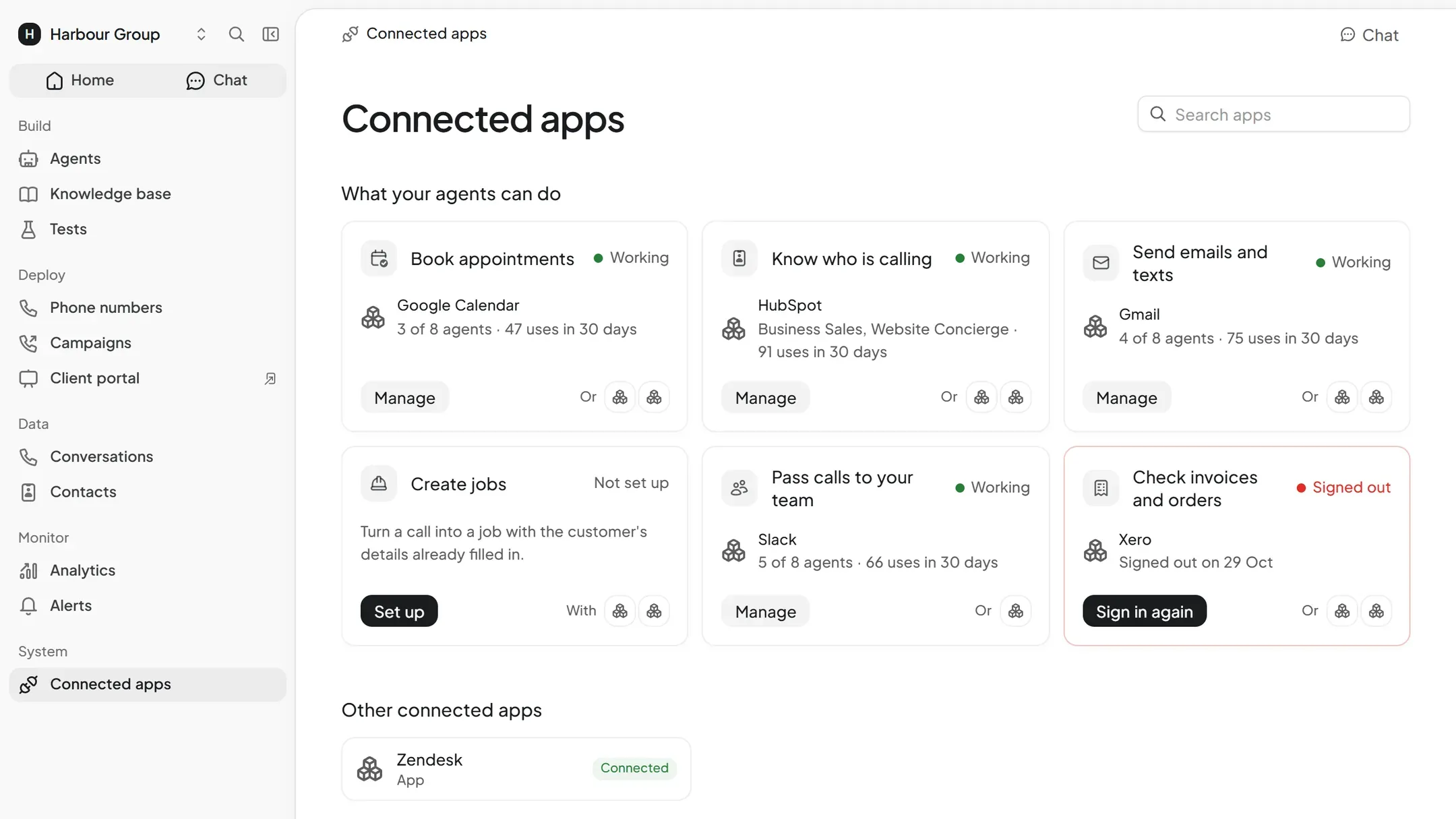
- One click. You sign in to Excel from Connected apps and approve access. There's no API key to paste.
- What it reads
- 65 actions, such as calculate Workbook Function, calculate Excel Workbook and download Workbook.
- What it changes
- 60 actions, such as add Chart, add Named Item and add SharePoint Worksheet.
- What starts an action
- The agent runs an action during a call or chat when the conversation needs it. It only runs the actions you switch on.
- Custom work
- You choose each action from its list of 125. Anything the list doesn't cover needs a custom API tool on Scale, or a Concierge build.
- Checked
- Action list checked 14 November 2026. We haven't tested each action.
Excel actions
Reads 65
- Calculate Workbook Function
- Calculate Excel Workbook
- Download Workbook
- Export Workbook to PDF
- Get Excel Application
- Get chart
- Get Chart Axis
- Get chart component
- Get Chart Data Labels
- Get chart image
- Get Chart Legend
- Get chart point
- Get chart series
- Get Comment
- Get Comment Reply
- Get Derived Range
- Get Drive Item
- Get Named Item
- Get Named Item Range
- Get Excel Operation Status
- Get Pivot Table
- Get Projected Worksheet Subresource
- Get Range
- Get Range Format
41 more
- Create Excel Session
- Get SharePoint Range
- Get SharePoint Worksheet
- Get Table
- Get table column
- Get Table Column Cell
- Get Table Column Range
- Get Table Range
- Get Table Row
- Get Table Row Range
- Get Table Sort
- Get Visible Range
- Get workbook
- Get Worksheet
- Get Worksheet Protection
- Get Worksheet Row Range
- Get Worksheet Used Range
- List chart points
- List Charts
- List Chart Series
- List Comment Replies
- List Comments
- List Drive Item Children
- List Drive Item Versions
- List Drive Files
- List Named Items
- List Pivot Tables
- List SharePoint Tables
- List SharePoint Worksheets
- List Site Lists
- List Table Columns
- List Table Rows
- List Tables
- List Workbook Permissions
- List Workbook Tables
- List Worksheets
- Resolve Shared Workbook
- Search Drive Files
- Search Microsoft 365 Content
- Search Sites
- Who Am I
Changes 48
- Add Chart
- Add Named Item
- Add SharePoint Worksheet
- Add Table
- Add Table Column
- Add Table Row
- Add Workbook Permission
- Add Worksheet
- Apply Table Filter
- Apply Table Sort
- Autofit Range
- Close Excel Session
- Convert Table To Range
- Copy Drive Item
- Create Comment
- Create Folder
- Create Upload Session
- Create Workbook
- Create Workbook Sharing Link
- Insert Range
- Merge Cells
- Protect Worksheet
- Reapply All Table Filters
- Reapply Table Sort
24 more
- Refresh Pivot Tables
- Refresh Excel Session
- Run Graph Mutation Batch
- Run Graph Read Batch
- Set chart data
- Set chart position
- Sort Range
- Unmerge Range
- Unprotect Worksheet
- Update Chart
- Update chart component
- Update Chart Legend
- Update chart series
- Update Drive Item
- Update Named Item
- Update Range
- Update Range Format
- Update SharePoint Range
- Update Table
- Update Table Column
- Update Table Column Range
- Update Table Row
- Update Worksheet
- Upload Workbook from URL
Deletes 12
- Clear Range
- Clear Table Filter
- Clear All Table Filters
- Clear Table Sort
- Delete Drive Item
- Delete Named Item
- Delete Range
- Delete Table
- Delete Table Column
- Delete Table Row
- Delete Worksheet
- Revoke Workbook Permission
Excel setup
Signing in to Excel
Choose Excel in Connected apps and approve its consent screen. Your tokens stay with our connection broker and never reach the agent.
Choosing the actions
Choose which of the 125 actions the agent may use. Start with lookups and add the ones that change Excel when you're ready.
Testing, then publishing
Watch the agent use the live app in the browser tester, then publish. Voice and text agents share the connection.
More integrations



Get started
Tell us what your callers ring about, and we build and test the agent for you.