CloudPDF for your voice agent
CloudPDF is an API platform for creating, uploading, managing, and sharing PDF documents. Use it to build secure PDF workflows with webhooks, share links, and access control.
Call 1800 570 693 to talk to the demo agent. Plans start at A$49 a month.
Integration record
- Status
- Available
- Plan
- Every plan, from Starter at A$49 a month
- How it connects
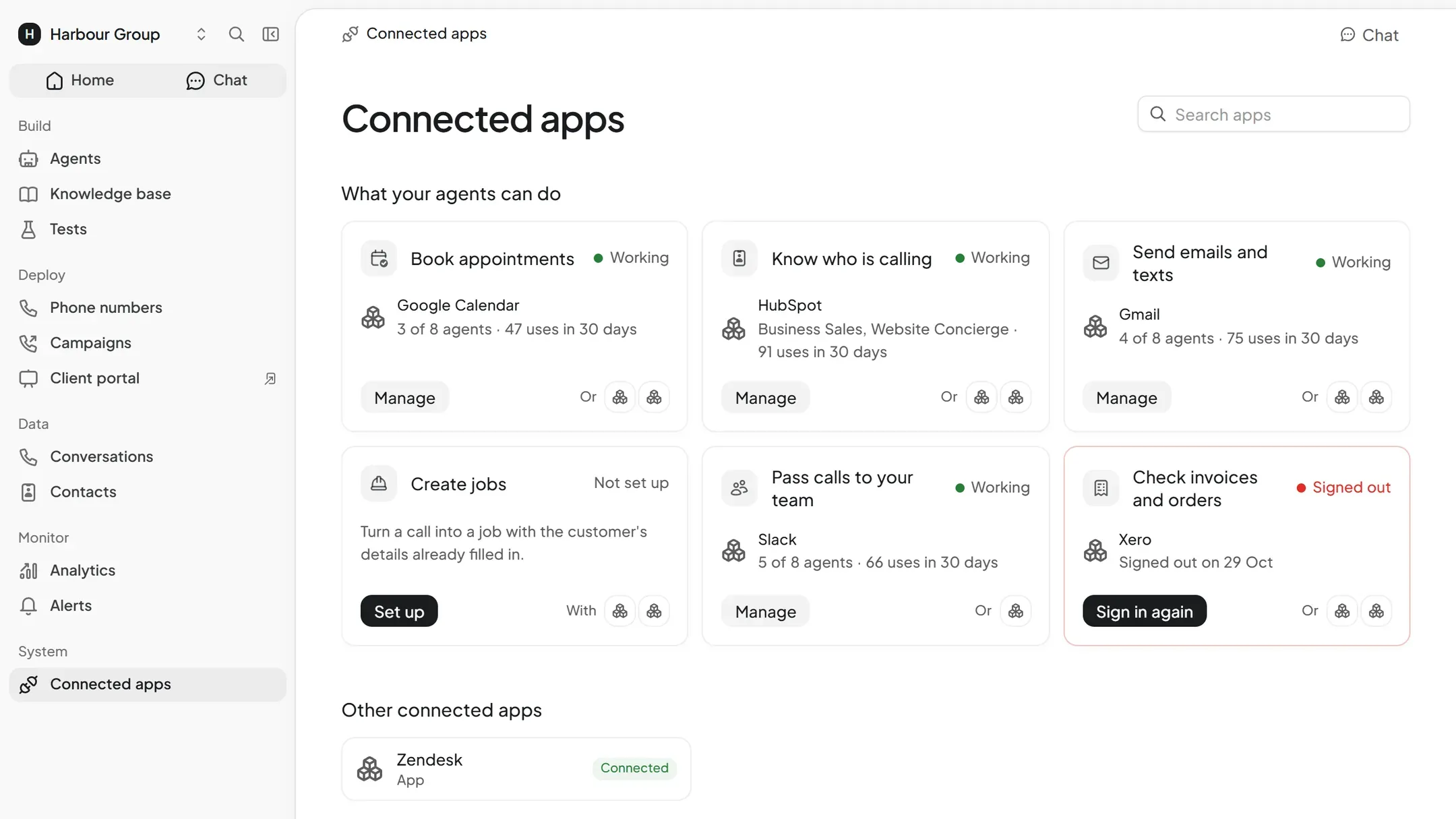
- With an API key. You create a key in CloudPDF and paste it on a secure page in Connected apps.
- What it reads
- 5 actions, such as get Account, get Document and get Document File.
- What it changes
- 5 actions, such as create Webhook, update Document and update Webhook.
- What starts an action
- The agent runs an action during a call or chat when the conversation needs it. It only runs the actions you switch on.
- Custom work
- You choose each action from its list of 10. Anything the list doesn't cover needs a custom API tool on Scale, or a Concierge build.
- Checked
- Action list checked 14 November 2026. We haven't tested each action.
CloudPDF actions
Reads 5
- Get Account
- Get Document
- Get Document File
- Get Webhook
- List Webhooks
Changes 3
- Create Webhook
- Update Document
- Update Webhook
Deletes 2
- Delete Document
- Delete Webhook
CloudPDF setup
Pasting a CloudPDF API key
Create an API key in CloudPDF, choose CloudPDF in Connected apps and paste the key on the secure page.
Choosing the actions
Choose which of the 10 actions the agent may use. Start with lookups and add the ones that change CloudPDF when you're ready.
Testing, then publishing
Watch the agent use the live app in the browser tester, then publish. Voice and text agents share the connection.
More integrations



Get started
Tell us what your callers ring about, and we build and test the agent for you.